Meters & Usage
How to read a smart meter
5 min read
Smart meters let you see electricity usage multiple times during the day. Here we explain how you can find the right screen to see your electricity usage if you have a smart tariff.
What is on a smart meter?
A smart meter has very few physical features, and only some are actually relevant. The exact layout and button colour can vary between different models.
- Display screen: Shows the various meter readings
- Push button: Controlling the display
- Configuration button: Only accessible to technicians
Switching between displays
There is one main button which switches the display between the different readings and outputs. You can tell what screen you’re on by the numbers and letters shown on the screen.
| Button pushes | Screen displays | What to look for |
|---|---|---|
| Default / push twice | Total electricity usage | A+ and 1.8.0 |
| Push once | Date / time alternating | DATE / TIME and 1.0.0 |
| Push three times | Night usage reading | A+, T1, and 1.8.1 |
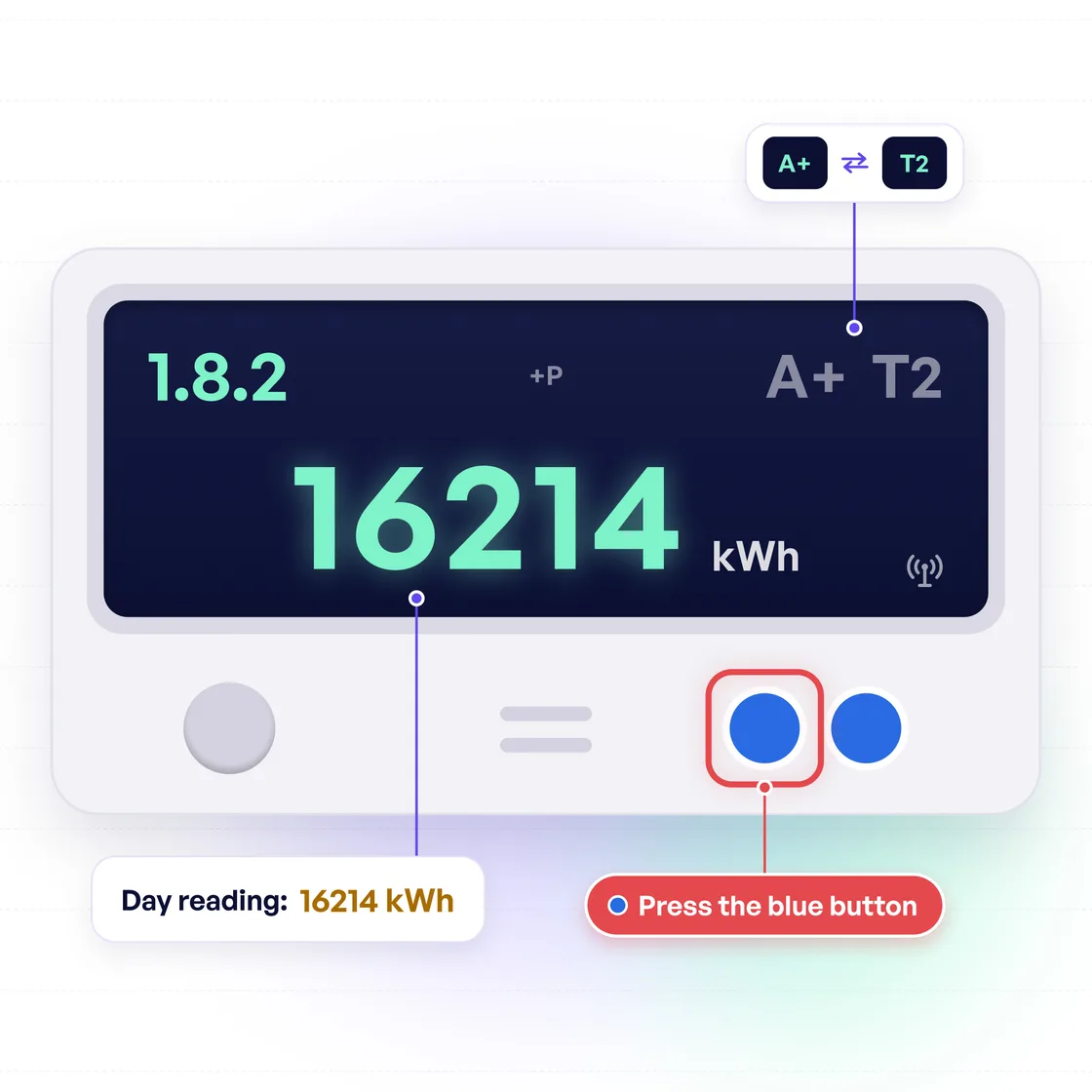
| Push four times | Day usage reading | A+, T2, and 1.8.2 |
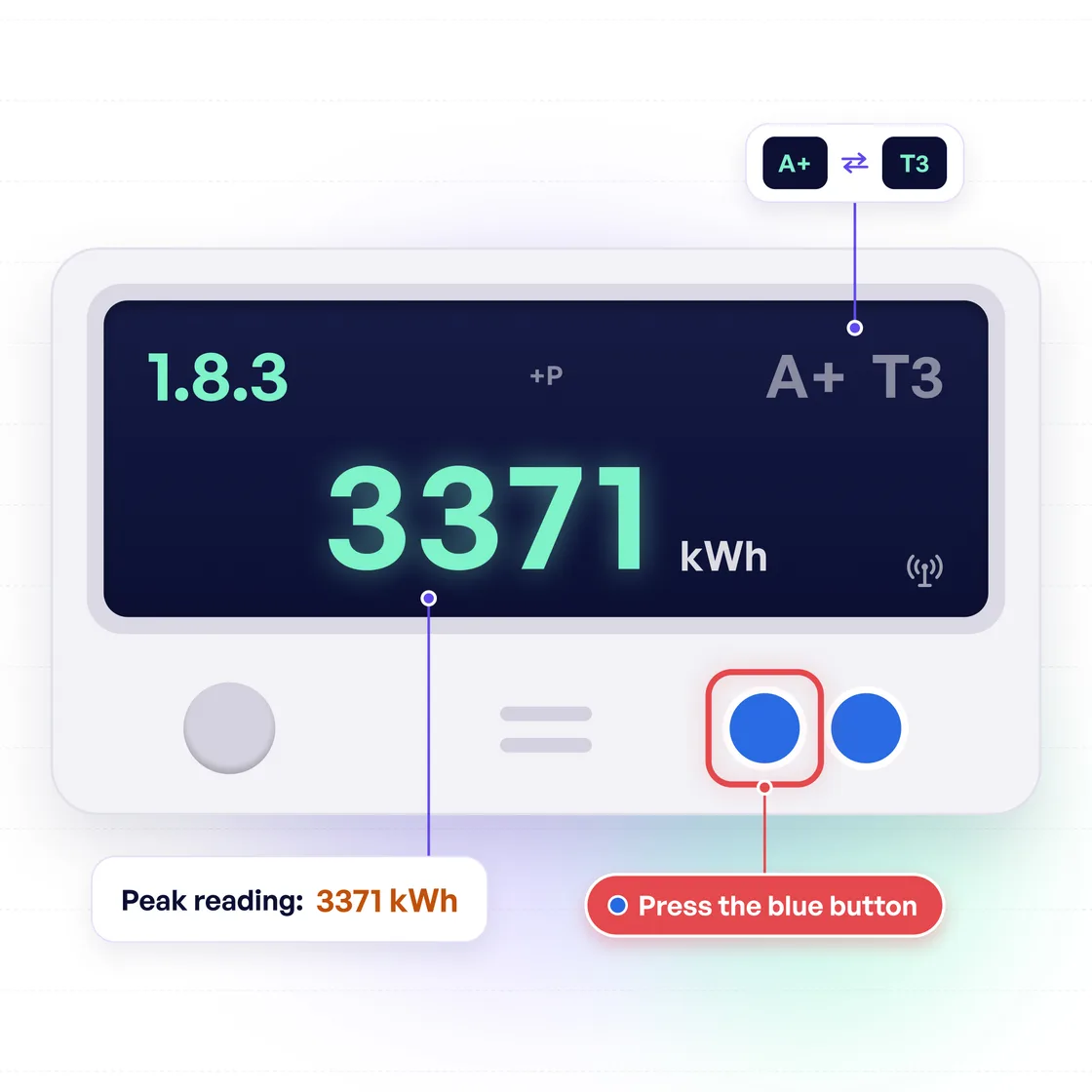
| Push five times | Peak usage reading | A+, T3, and 1.8.3 |
| Push six times | Screen test | Various images flash |
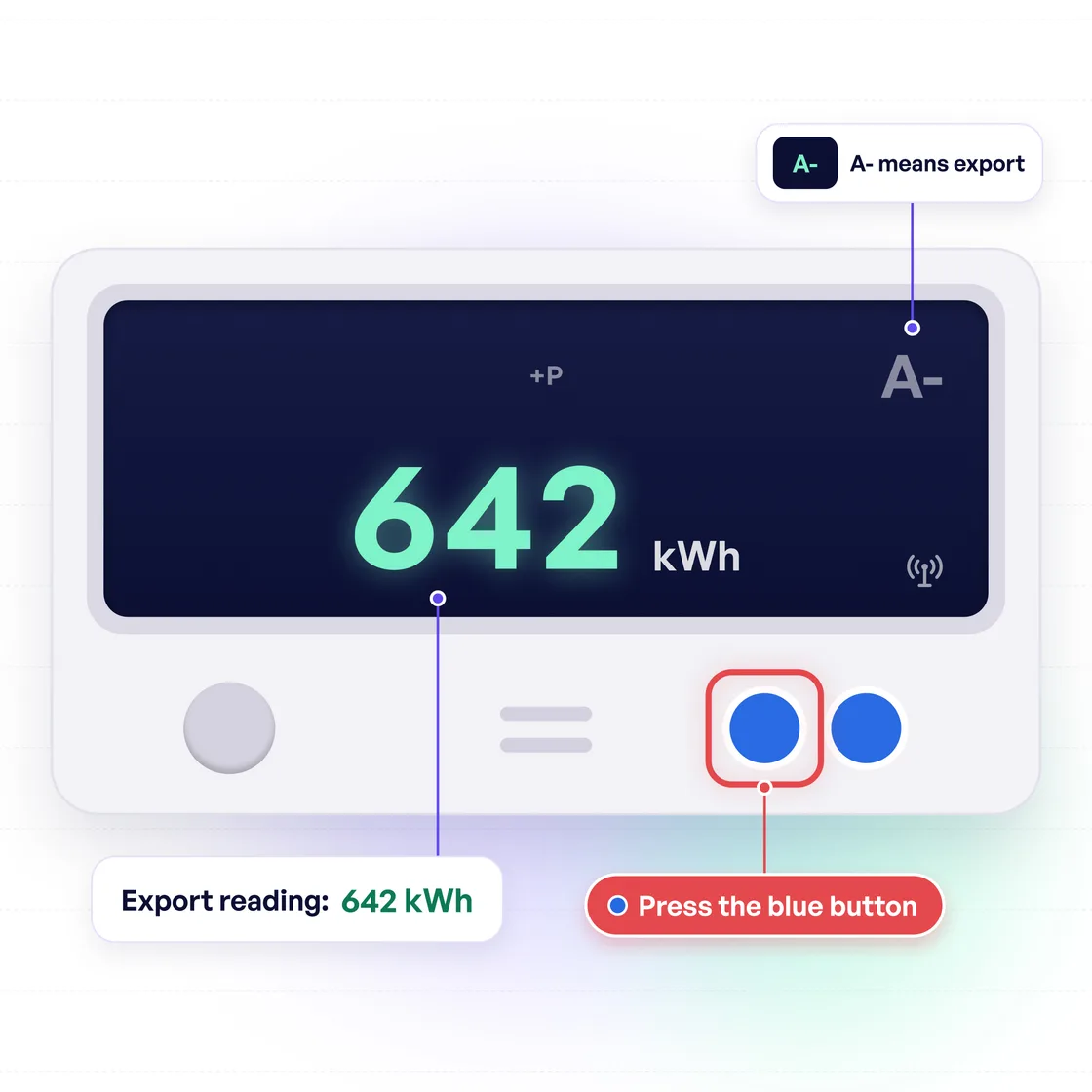
| Push seven times | Export reading | A- |
The 1.x.x number is found in the top-left corner of the display. The A+ and A- symbol, and T1, T2, T3 labels usually appear in the top right. The screen will flash between A+ and the T1/2/3 depending on which reading is shown.
Total reading screen
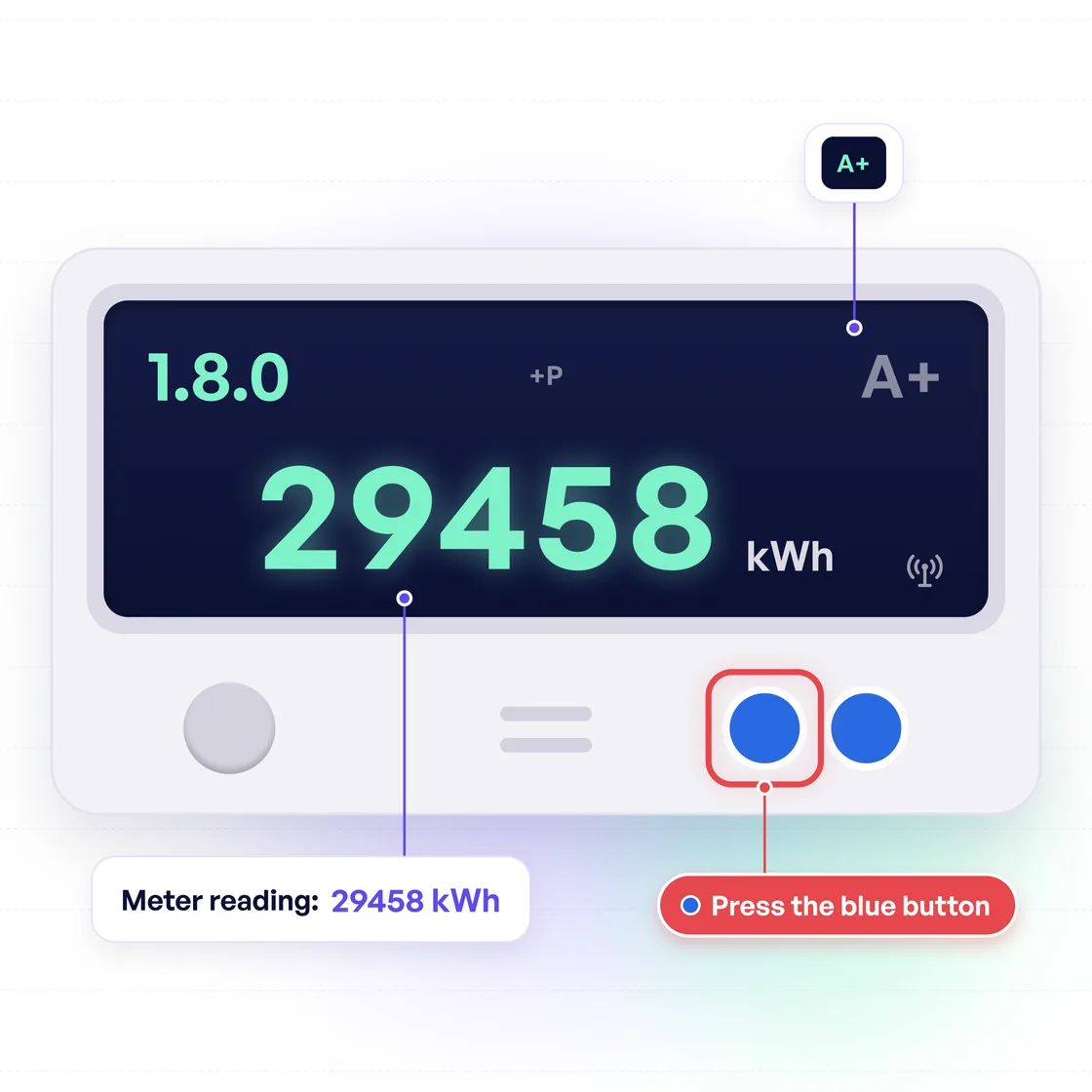
The default display screen of your smart meter shows the total amount of electricity you have used across all times in kilowatt-hours (kWh). This is displayed when you have not pressed the button, or when you have pressed it twice.
Simply read the display from left to right, including all digits, to get your total electricity usage.
Date & time screen
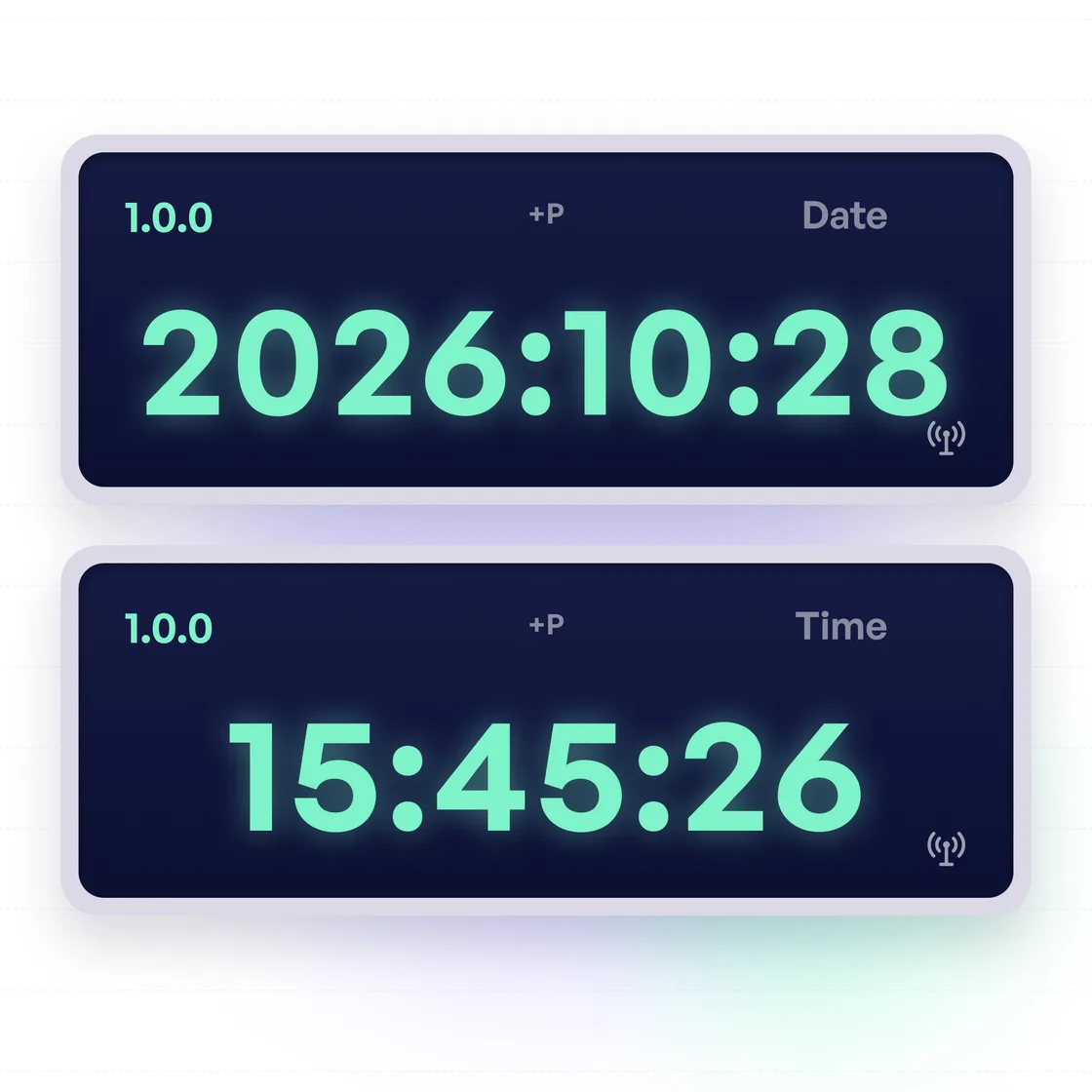
Pressing the button once takes you from the main screen to the date and time screen. This will swap back and forth between showing the date and time. The display format is typically:
- Date: year : month : day
- Time: hours : minutes : seconds
Pressing the button a second time will bring you back to the main screen. Continue to press it to reach the other reading screens.
Night reading screen
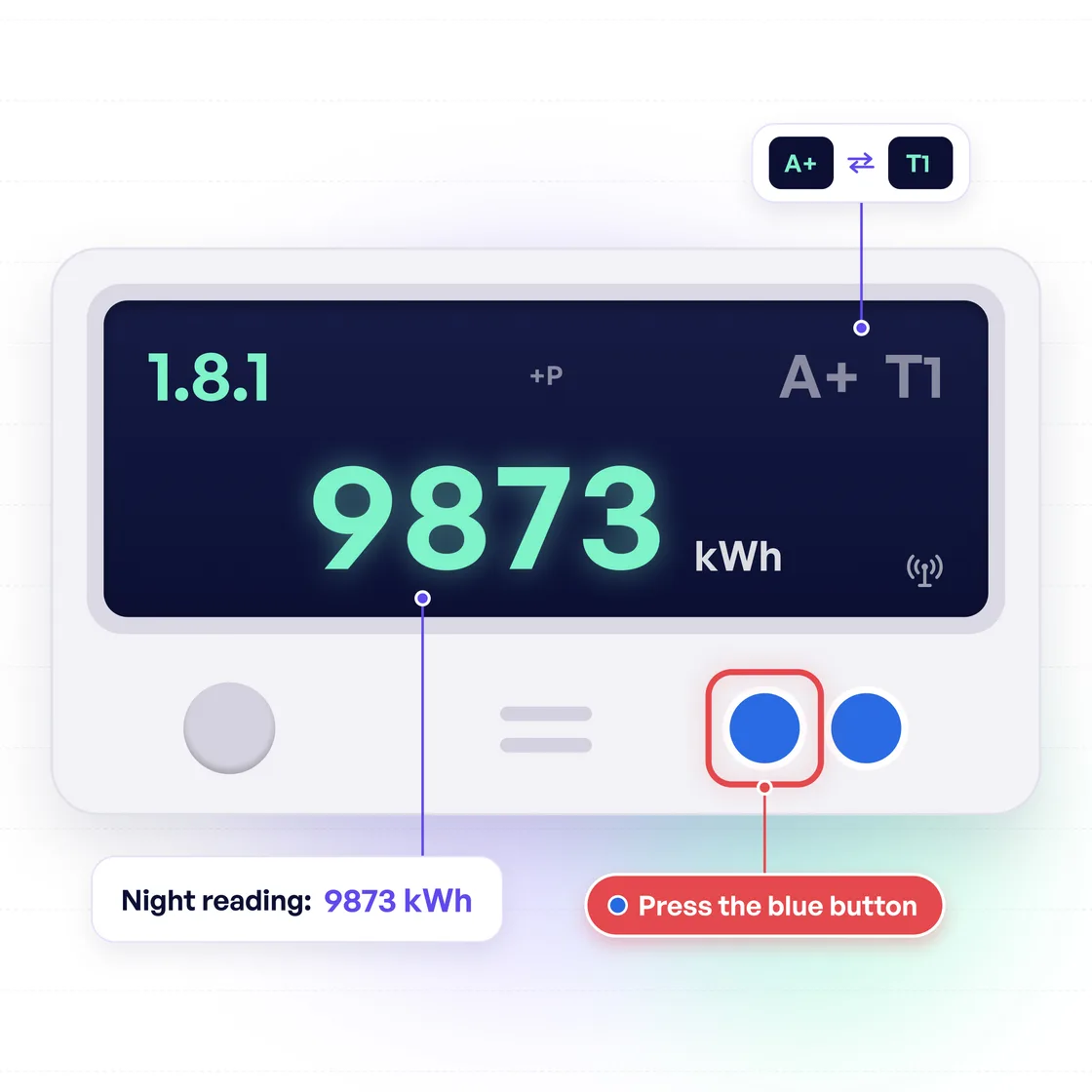
This is the first screen after the total reading and date/time displays. You get your night reading by pressing the button three times. The screen should show 1.8.1 and A+ / T1. This is all of the electricity you used in the hours between 11pm and 8am.
Day reading screen
The day reading comes after the night reading screen. Push the button four times to get here. The screen should show 1.8.2 and A+ / T2.
This is all of the electricity used from 8am - 11pm, excluding peak hours. The day reading will likely be the largest on your meter after the total.
Peak reading screen
This is the final electricity import screen, showing electricity imports in the hours of 5pm - 7pm. Push the button five times to reach it, and the screen will display 1.8.3 and A+ / T3.
This should be the smallest import reading. If it looks large consider changing your usage patterns, as electricity can be very expensive in peak hours on smart tariffs with a peak rate.
Electricity export screen
This screen shows how much electricity you’re exporting back into the grid, rather than importing from it. It’s only relevant for homes with solar panels, or another microgeneration system. If you don’t generate your own power, you can ignore it.
To reach it you push the button seven times, and the screen should display an ‘A-’.
View usage data on your ESB Networks online account
If you have a smart meter installed you can also view all of your usage data in even more detail by creating an ESB Networks online account. The format of this usage data will depend on your smart meter configuration. It can be either:
- Day/night/peak: Usage within blocks of day (8am - 5pm / 7pm - 11pm), night (11pm - 8am), and peak (5pm - 7pm) hours.
- 30-minute intervals: Each day is broken into 48 blocks of 30 minutes each.
FAQs
How do I know if I’m importing or exporting electricity?
In the bottom left corner of the meter there is an arrow and symbol showing the direction power is flowing. If the arrow is pointing right with a ‘+’ above it you’re importing electricity.
What is the small antenna at the bottom of my meter screen?
This shows the connectivity of your smart meter. If it is not present then your meter is having difficulty connecting to ESB Networks, and won’t be able to submit automatic reading updates.
Do smart meters include fractions of electricity units?
No, unlike mechanical meters or older electronic meters, your smart meter will only show whole electricity units (kWh) to you. More detailed information is transmitted in the updates they send to ESB Networks.
Was this guide helpful?
Your feedback helps us improve our guides.


